

기한한정 무료 에셋
Add-ons
Blender
ETC
무료
애드온
Simple Batch Render
Simple Batch Render
Regular price
$0.00
Regular price
Sale price
$0.00
Taxes included.
The Founding Studio. Official curated library by Spacer. Drawing from our deep expertise in high-end 3D production, we offer a premier collection of assets meticulously vetted for quality and performance. We provide high-fidelity resources designed for professionals who demand excellence in every single detail.
Direct Sourcing
Not Available
What is Direct Sourcing?
Direct Sourcing Product Information
Direct Sourcing Product Information
Supported Formats: etc.
Poly Count:
Product Information Notice
Product Information Notice
Manufacturer/Supplier: Spacer Official
Terms and Hours of Use: No restrictions
Product Delivery Method: Download
System Requirements: This product is a 3D digital asset and requires Blender (recommended) or 3D software that supports .blend and .fbx files. Users need basic 3D program proficiency and an understanding of rendering. Performance may vary depending on system specifications (CPU, GPU, memory, etc.).
Refund Policy: Due to the nature of digital products, once the download is complete, cancellations, terminations, or rescissions of contracts are not possible. However, if the product has significant defects or differs substantially from the description, please contact customer support.
Important Notice Before Purchase
Important Notice Before Purchase
Unauthorized use, reproduction, and distribution of all assets (including images) included in this product are strictly prohibited.
Any alteration, redistribution, or use for AI training or image generation is also strictly prohibited, and violations will result in strong legal action.
Due to the nature of digital products, exchanges and refunds are not possible after download is complete, so please be sure to check the product information before purchasing.
If the product is defective or differs from the description, please contact customer support, and we will check and guide you accordingly.
License
License
This asset may be used for personal and commercial purposes. However, reselling, redistributing, or using the asset for AI training and image generation, regardless of whether it has been modified, is strictly prohibited.
Reselling or distributing the asset as a standalone product or in a similar form is not permitted under any circumstances.
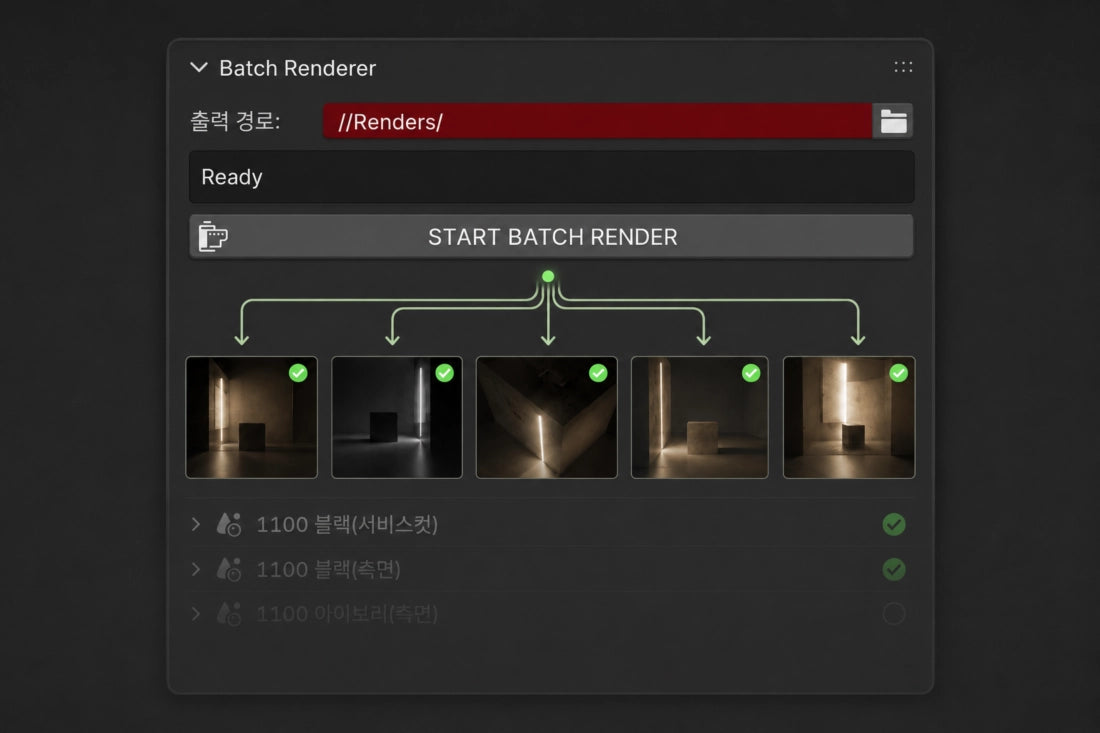
Asset Product Details
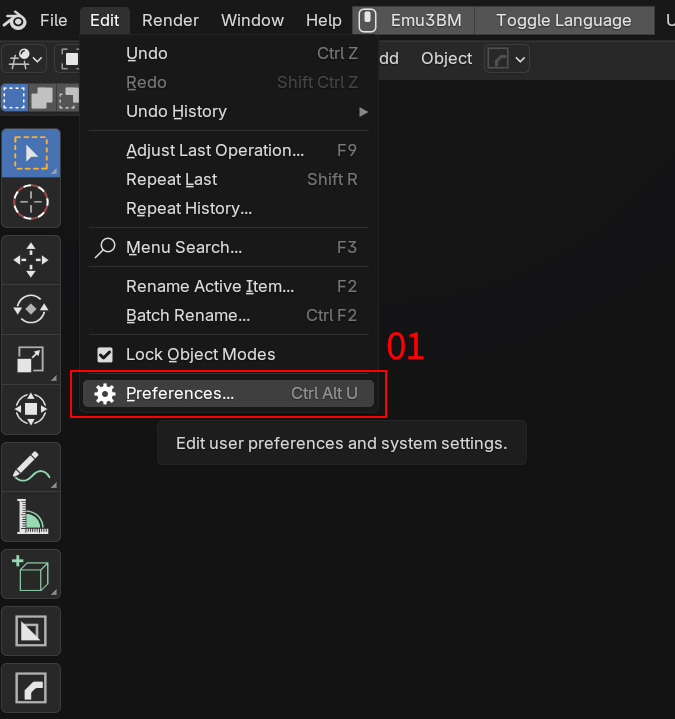
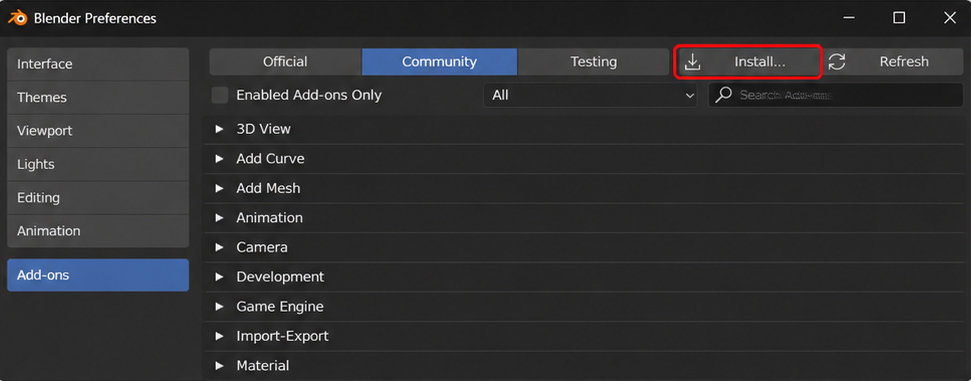
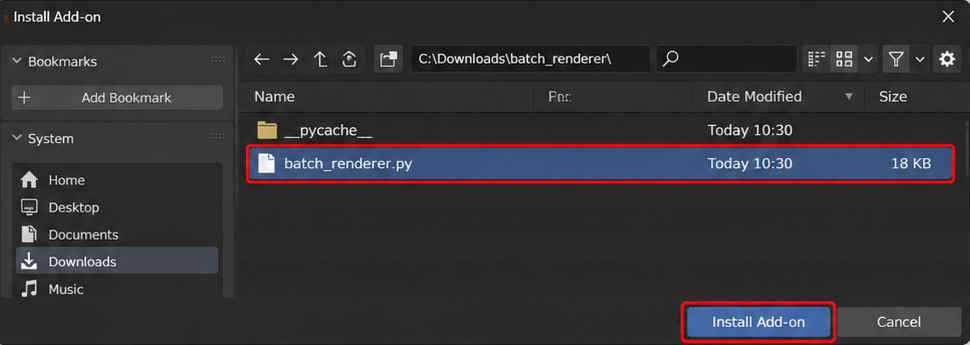 3. Select and Install Add-on File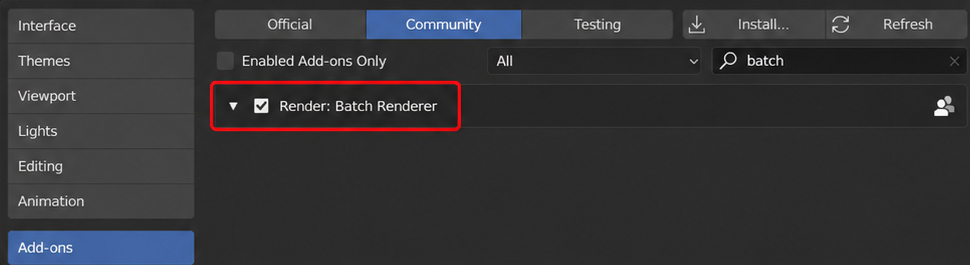
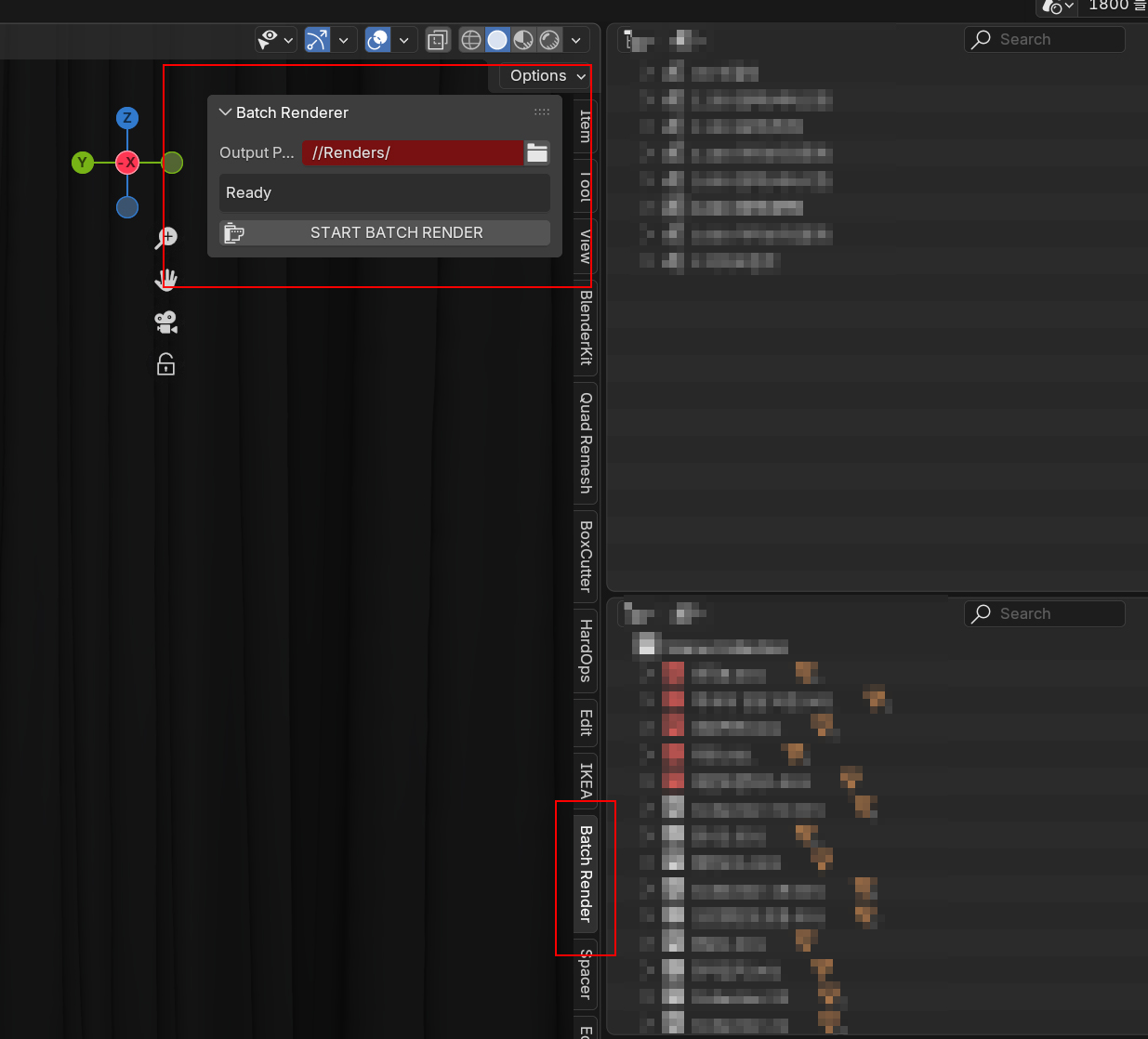 5. Check Batch Renderer Panel